
How to Download and install Roblox Studio on PC/Mac
Roblox Studio is the free game development software you need to create games on the Roblox platform. It works on Windows and Mac, giving you 3D building tools, Lua scripting capabilities, and direct publishing, all at no cost.
This guide walks you through downloading and installing Roblox Studio on your computer. You’ll also learn about system requirements, mobile alternatives, and fixes for common installation problems.
Ready to start creating? Let’s begin.
What is Roblox Studio?
Roblox Studio is Roblox’s official game creation tool. While Roblox is where people play games, Studio is where you build them. Think of it as your game development workshop.
Studio includes drag-and-drop building tools for beginners and Lua scripting for advanced developers. You can create 3D environments, add game mechanics, test your game locally, and publish directly to millions of Roblox players worldwide.
Whether you’re 10 or 40, Studio scales to your skill level. Start with simple obstacle courses and eventually build complex RPGs, simulators, or multiplayer games.
Want to learn more about Studio’s features? Check our complete Roblox Studio guide covering everything from building basics to monetization. For now, let’s get it installed.
System Requirements for Roblox Studio
Check that your computer meets these requirements before installing Roblox Studio:
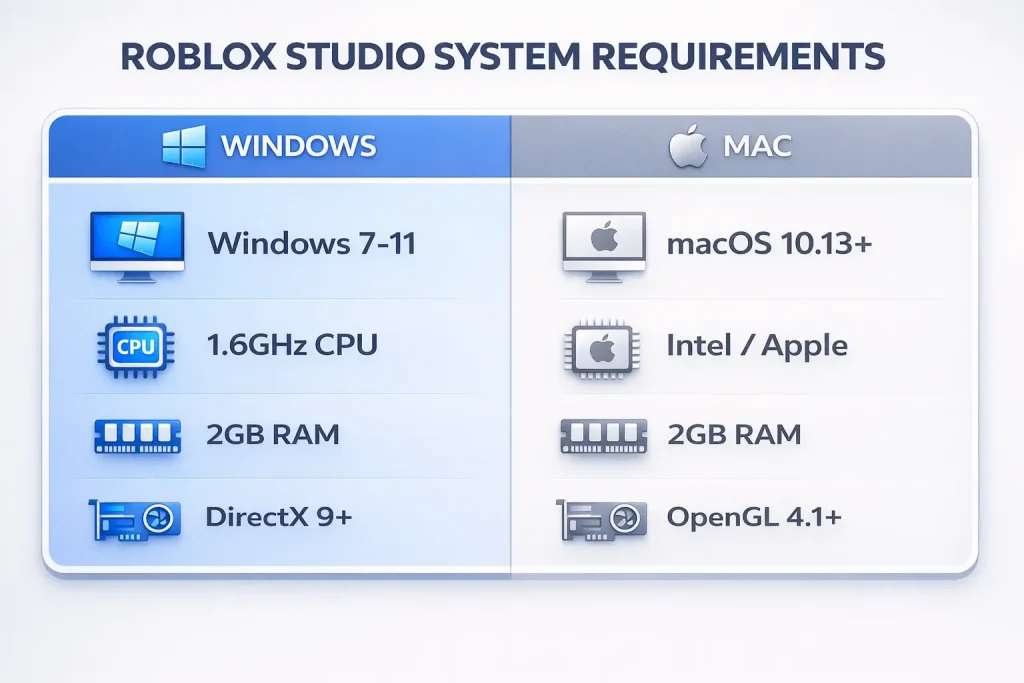
Windows Requirements
Component | Requirement |
|---|---|
Operating System | Windows 7-11 |
Processor | 1.6 GHz+ |
RAM | Minimum 2 GB |
Graphics Card | DirectX 9+ |
Mac Requirements
Component | Requirement |
|---|---|
Operating System | macOS 10.13+ |
Processor | Intel/Apple |
RAM | Minimum 2 GB |
Graphics Card | OpenGL 4.1+ |
Additional Requirements
Devices Not Supported
Roblox Studio does not work on Chromebooks, Linux, or mobile devices (phones/tablets). See the mobile workaround section below for alternatives.
How to Install Roblox Studio on Windows and Mac
Installing Roblox Studio on Windows and Mac is straightforward and allows you to create games and virtual experiences quickly. Below are the simple steps to get Roblox Studio up and running on your device.
Installation Steps for Windows
Tip: If Windows shows a security warning, click “More info” then “Run anyway.” Roblox Studio is safe and verified by Microsoft.
Installation Steps for Mac
Tip: If Mac says Studio is from an “unidentified developer,” go to System Preferences > Security & Privacy and click “Open Anyway.”
Can You Download Roblox Studio on Mobile?
Short answer: No. Roblox Studio is not officially supported on phones or tablets. It only works on Windows and Mac computers.
Why not mobile? Studio requires significant processing power, a keyboard and mouse for precise editing, and a larger screen to see the interface properly. Mobile devices can’t handle these requirements.
The Emulator Workaround (Not Recommended)
Some users try running Roblox Studio on Android devices using PC emulators like BlueStacks or NoxPlayer. However, this method has serious limitations:
Before you try this, understand:
We don’t recommend this approach. If you’re serious about game development, use a computer. If you only have a mobile device, focus on learning Roblox Studio tutorials first, then use Studio when you get computer access.
Steps to Try Studio on Android (Advanced Users Only)
If you still want to attempt this despite the warnings:
Want to play instead of create? Download Roblox mod apk for Android with unlimited Robux and premium features.
What Happens After Installation?
Once Roblox Studio is installed, here’s what to expect:
First Launch
- Studio opens with a template gallery (choose “Baseplate” to start from scratch)
- Log in with your Roblox account
- The main interface shows building tools, asset library, and viewport
Your First Steps
Learning Resources
What Can You Build?
Everything from simple obstacle courses (obbys) to complex RPGs, simulators, racing games, and shooters. Studio’s tools scale from beginner-friendly drag-and-drop to advanced Lua scripting.
Want a complete breakdown of Studio’s features, interface, and capabilities? Read our full Roblox Studio guide.
Troubleshooting Common Installation Issues
If you run into problems installing Roblox Studio, try these solutions:
Installation Won’t Start or Fail
Problem: The installer doesn’t run or shows an error mid-installation.
Solutions:
- Check your internet connection—Studio requires downloading additional files during installation
- Restart your computer and try again
- Temporarily disable antivirus software (some flag Studio as suspicious)
- Run the installer as Administrator (Windows: right-click > “Run as administrator”)
- Download the installer again—the file may have been corrupted
Compatibility Errors
Problem: Studio shows “incompatible system” or crashes on launch.
Solutions:
Studio Won’t Launch After Installation
Problem: Installation succeeds, but Studio doesn’t open.
Solutions:
Login Issues
Problem: Studio asks for a login but won’t accept your credentials.
Solutions:
Still need help? Contact Roblox Support at roblox.com/support with your operating system version and error screenshots.
Ready to Start Creating?
You now have Roblox Studio installed and ready to use. Whether you’re building your first obstacle course or planning a complex multiplayer game, Studio provides the tools you need.
Next steps:
- Open Studio and explore the template gallery
- Try the built-in tutorials to learn the basics
- Join the Roblox Creator community for tips and support
- Read our complete Roblox Studio guide for detailed feature explanations
Final Words
Roblox Studio is now installed and ready on your computer. This guide covered system requirements, installation steps for Windows and Mac, mobile alternatives, and troubleshooting tips to help you get started quickly.
You have everything needed to begin creating Roblox games. Open Studio, explore the templates, and start building. For detailed tutorials and feature guides, check our complete Roblox Studio resource. Happy creating!
FAQS-Frequently Ask Question